Enough to preview 2 photos at 11 credits each. No card needed.
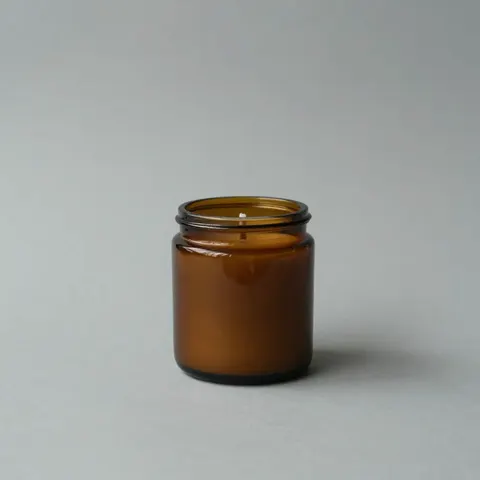
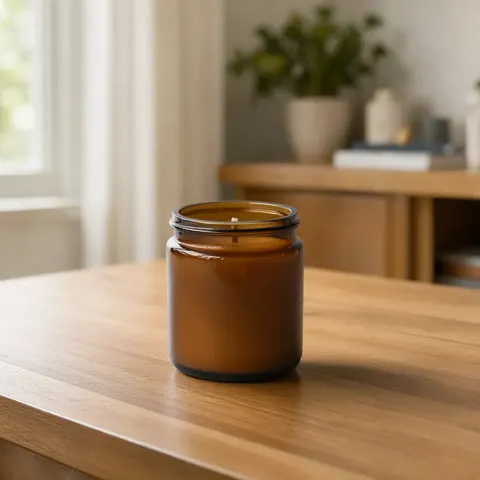
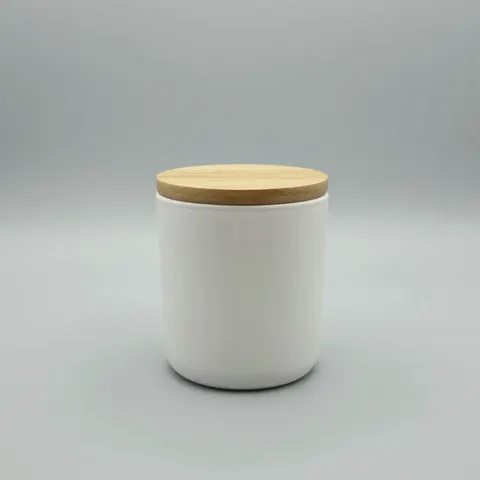
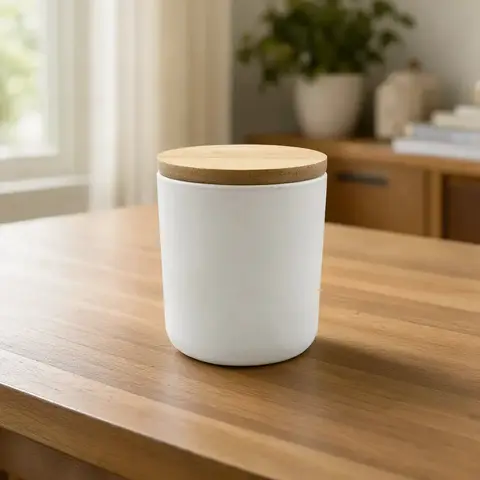
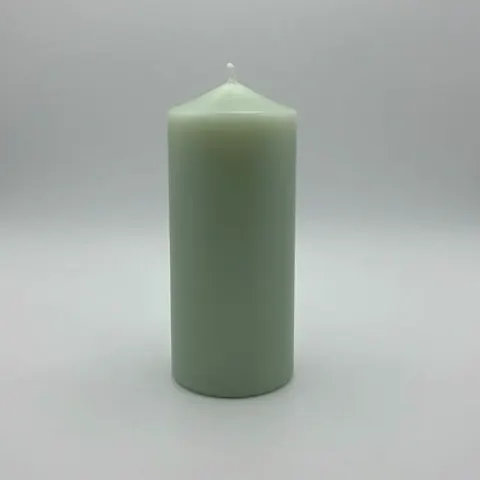
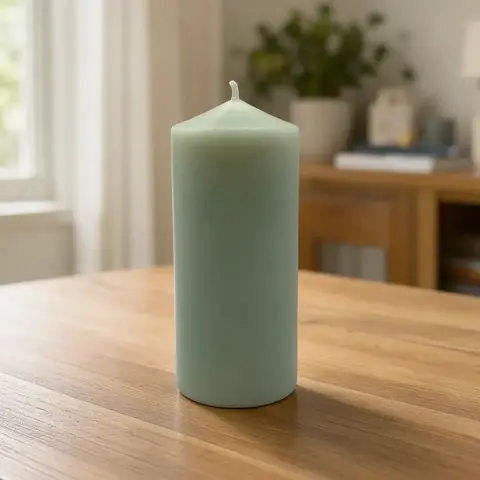
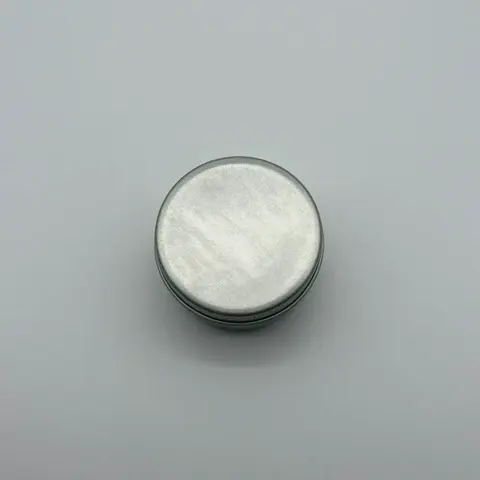
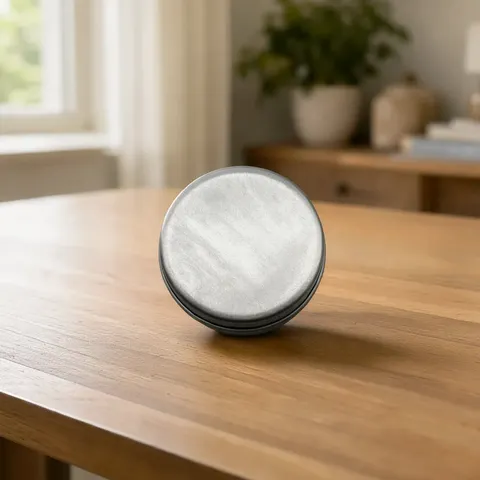
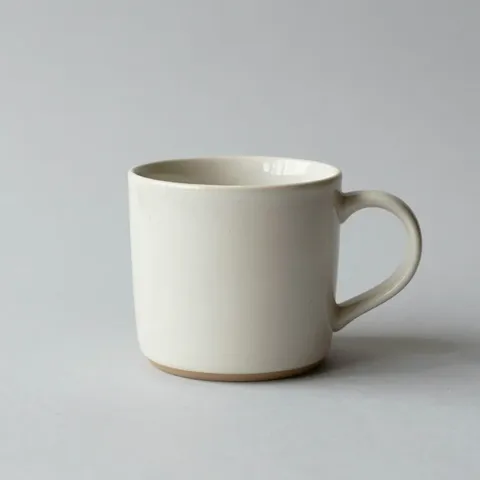
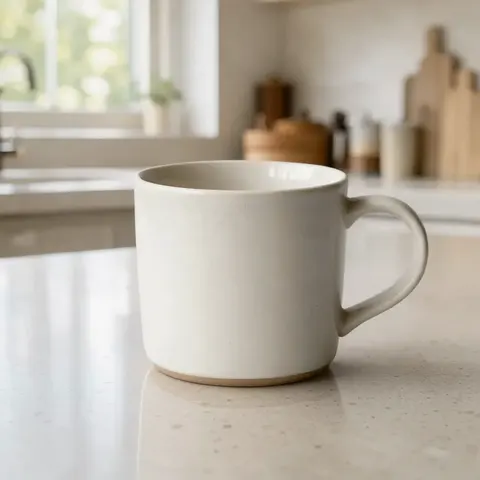
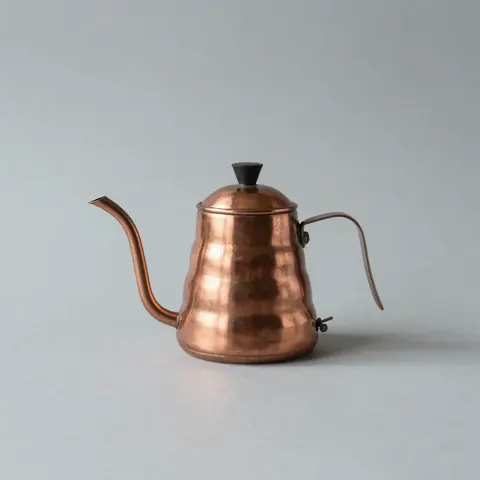
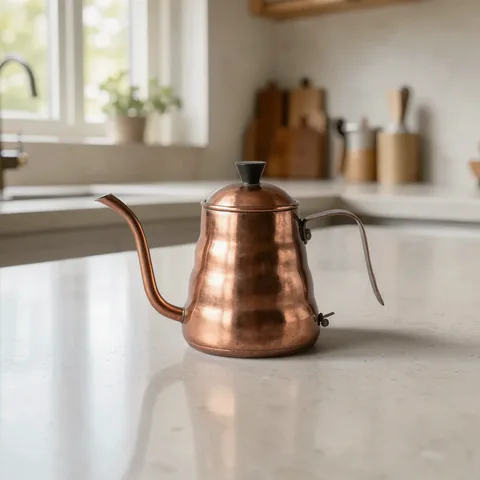
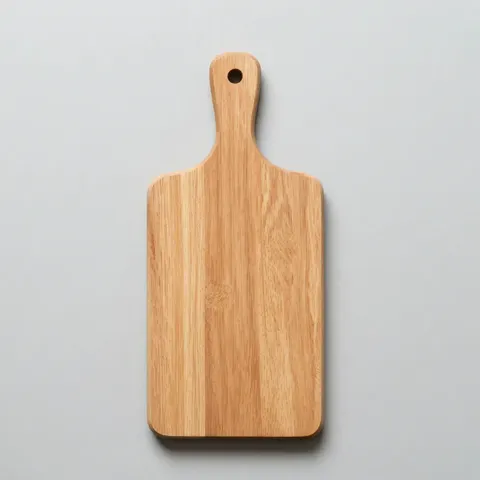
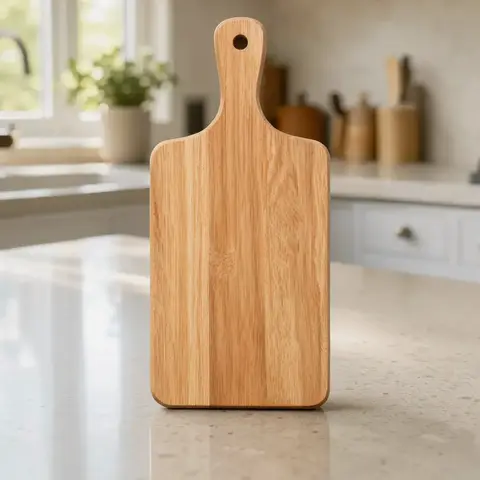
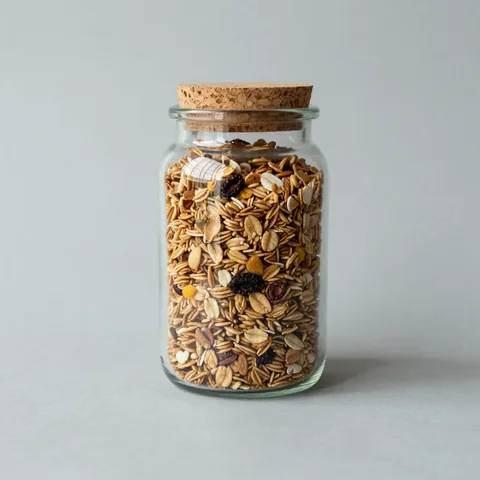
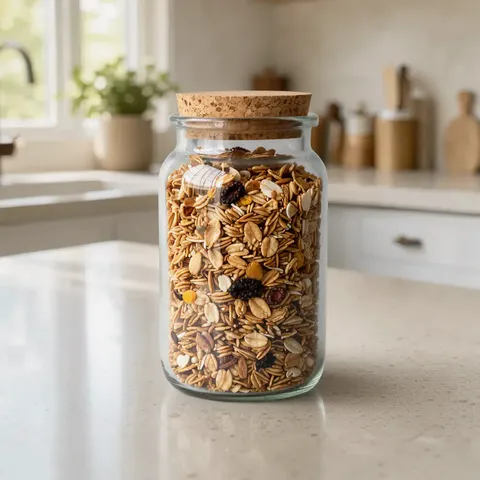
Product photo editing here means changing everything around the item and nothing on it. You upload your own shots, describe the setting you want, for example a warm oak table with window light from the left, and every photo comes back in that setting. The surface, backdrop, light and shadow change; the product, its colour, its label and its logo are meant to stay exactly as they were in your photo.
Updated
How it works
1
Add your product shots
Use photos of products you sell, in JPG, PNG or WebP, each at least 256 px a side and no larger than 10 MB. Even light on the product helps more than an expensive camera.
2
Describe the setting
Start from Oak and window light or another recipe, or write your own: surface, background, light direction and shadow. Leave the product out of the description.
3
Check, then finish the set
Look at the preview at full size, focusing on the product. When it looks right, run the remaining photos and export them in the shape your listings need.
Good for
Turning plain phone shots of stock into styled listing images
Giving handmade goods a setting that matches the shop’s feel
Small brands that cannot book a studio for every new product
Replacing cluttered home backdrops with a clean, consistent scene
Oak and window light · Standard
Kitchen counter · Standard
01
What changes and what stays
The model is asked to redraw the scene and keep the item. In practice the surface, the backdrop, the colour of the light and the shadow are new, while the product’s shape, colours, printed text and logos should match your original. Because an AI model regenerates the whole picture, very small details can drift, which is why the preview exists: compare the product in the result with the one in your original before you run the rest.
02
AI product photo editor or a photo studio?
A studio gives you control over every reflection, and nothing here replaces a careful shoot for a flagship product. What this tool does well is the everyday catalogue: dozens of items that need the same table, the same light and the same shadow, done in an afternoon rather than a week of reshoots. Many shops use both, shooting hero products properly and editing the rest of the range to match.
03
Keeping listings honest
Shoppers expect the item in the photo to be the item in the box. The tool does not make colour variants or change a product, and the Acceptable Use Policy rules out using it that way. Props in a scene should read as decoration, not as something included. If an edited photo makes the product look different from the real one, keep the original photo for that listing.
Square, portrait and banner files, made in your browser
Free
Questions
Will the product look exactly the same?
That is the aim. A fixed instruction asks the model to keep the shape, colours, label text and logo. Small print can still drift, so check each preview, and use Label-safe for packaging with fine text.
Can I change the colour of a product?
No. The tool changes the scene, not the item, and making colour variants is not allowed under the Acceptable Use Policy because listings must show the real product.
Do I need a professional photo to start?
No. A sharp phone photo with even light works. A cleaner original gives a cleaner edit, so avoid strong reflections and keep the whole product in the frame.
Can I edit photos of people or models wearing my products?
The tool is for product photos only and does not support editing people. Photograph apparel on a flat surface or a form instead.
What files do I get back?
You get the edited photo as a PNG. Free browser exports add a padded square on white, a 4:5 portrait crop and a 16:9 banner crop, singly or as one ZIP.
Who runs Img Editing, and is it tied to a marketplace?
Img Editing is an independent service and has no affiliation with any marketplace, or with Black Forest Labs or Alibaba, whose models it uses.