
Guides
Guides to editing product photos for your shop
These guides are for shops with anywhere from ten to a couple of hundred product photos that need to look like one catalogue. Each one takes a single job, such as matching shadows, choosing a lifestyle scene, cropping a banner or keeping label text readable, and explains what to check, what to write in the instruction and which export to use. Every guide has the editor on the page, opened on the recipe that suits that job, so you can preview the advice on your own photos.
Updated
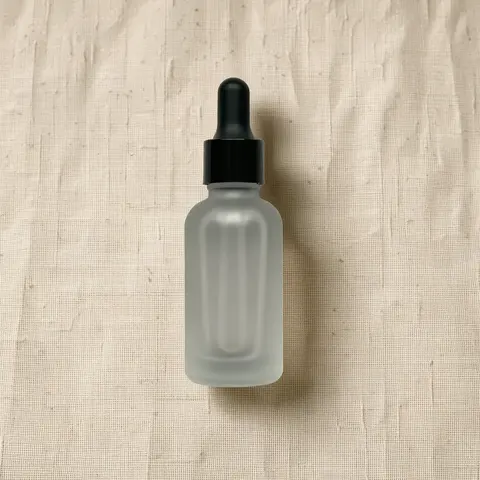
Bulk image editor for product catalogues
This bulk image editor applies one instruction to a whole set of product photos. Upload the set, write the scene once (or pick a recipe such as Studio gradient), preview it on the first photos, then run the rest. Each photo comes back on the same surface, in the same light, with the shadow falling the same way, while a fixed instruction asks the model to leave the product itself, its label and its logo as you shot them.
Open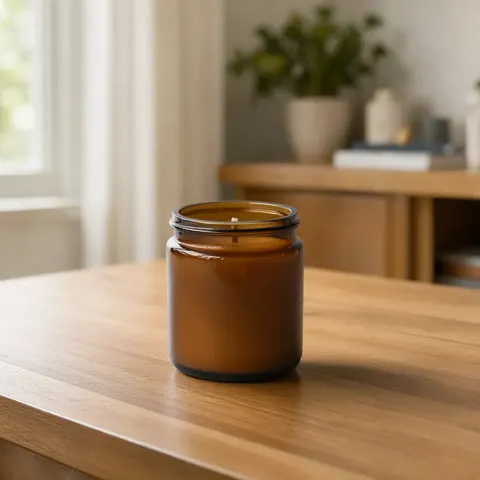
Product photo editing that keeps the product as shot
Product photo editing here means changing everything around the item and nothing on it. You upload your own shots, describe the setting you want, for example a warm oak table with window light from the left, and every photo comes back in that setting. The surface, backdrop, light and shadow change; the product, its colour, its label and its logo are meant to stay exactly as they were in your photo.
Open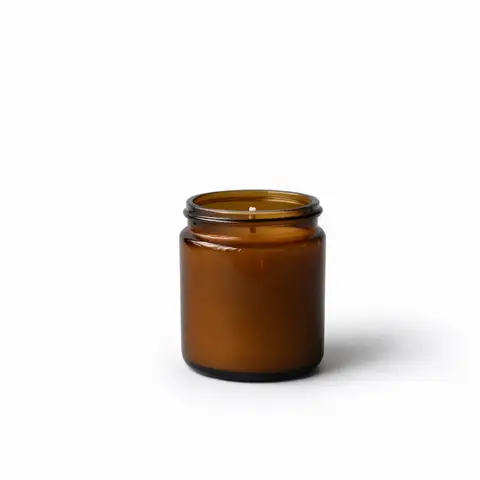
White background product photos, a whole set at once
To get a white background product photo from an ordinary shot, upload it, choose the White + soft shadow recipe and preview the result. The product is placed on a seamless white backdrop with a soft contact shadow underneath, so it sits on the page instead of floating. Run the rest of the set the same way, then export with the Square 2000 px on white preset, which pads each photo onto white without cropping any part of the product.
Open